EchoNav AI is a NSW Merit Recipient and National Finalist in the Not-for-Profit & Community category at the 2026 iAwards.
Navigate the web with
natural voice interaction.
An open-source Chrome extension transforming web browsing for visually impaired users. Featuring powerful AI screen analysis, comprehensive voice control, and seamless switching between cloud and privacy-focused local AI.
Redefining Web Accessibility
Through intuitive AI chat, powerful screen analysis, and comprehensive voice control, EchoNav AI transforms how you interact with the web.
AI Screen Analysis
Instantly understand webpage content. Analyze screenshots or full-page text with Gemini or your local LLMs to get comprehensive context.
Full Voice Control
Use your voice to navigate, ask questions, and control the browser completely hands-free. Includes precise Voice-to-Text and Text-to-Speech.
Dual AI Modes
Switch with a single click between powerful Cloud AI (Gemini, Mistral) and privacy-focused Local AI (Ollama, LM Studio, vLLM).
Web Page Interaction
Tell the AI to click buttons or type text for you (e.g., 'click the login button', 'type hello world in the search bar').
Cross-Platform Support
Works seamlessly on any Windows, macOS, or Linux computer running Google Chrome. Built securely on Manifest V3 architecture.
Privacy First
No data collection. All settings stored locally. With Local AI mode, your screen data never leaves your computer.
System Architecture
A robust, scalable integration between the client browser, built-in device models, and remote servers.
User Layer
Visually Impaired
Audio Feedback via Speaker
Motor Disability
Voice Commands via Mic
Client-Side (Chrome Browser)
Server-Side Services
Public API Calls
Local API Calls (Privacy)
API Gateway → Cloud Functions → Vertex AI
Proving Our Impact
Accessibility must be measurable. We are conducting rigorous beta testing across diverse user groups to validate success and ensure true digital independence.
Active participation targeted for Phase 2, spanning diverse visual impairment demographics.
Target reduction in time required to complete complex web forms and checkouts.
Expected decrease in user dead-ends and accidental misclicks via safe action execution.
Target User Satisfaction (CSAT) rating based on qualitative post-task surveys.
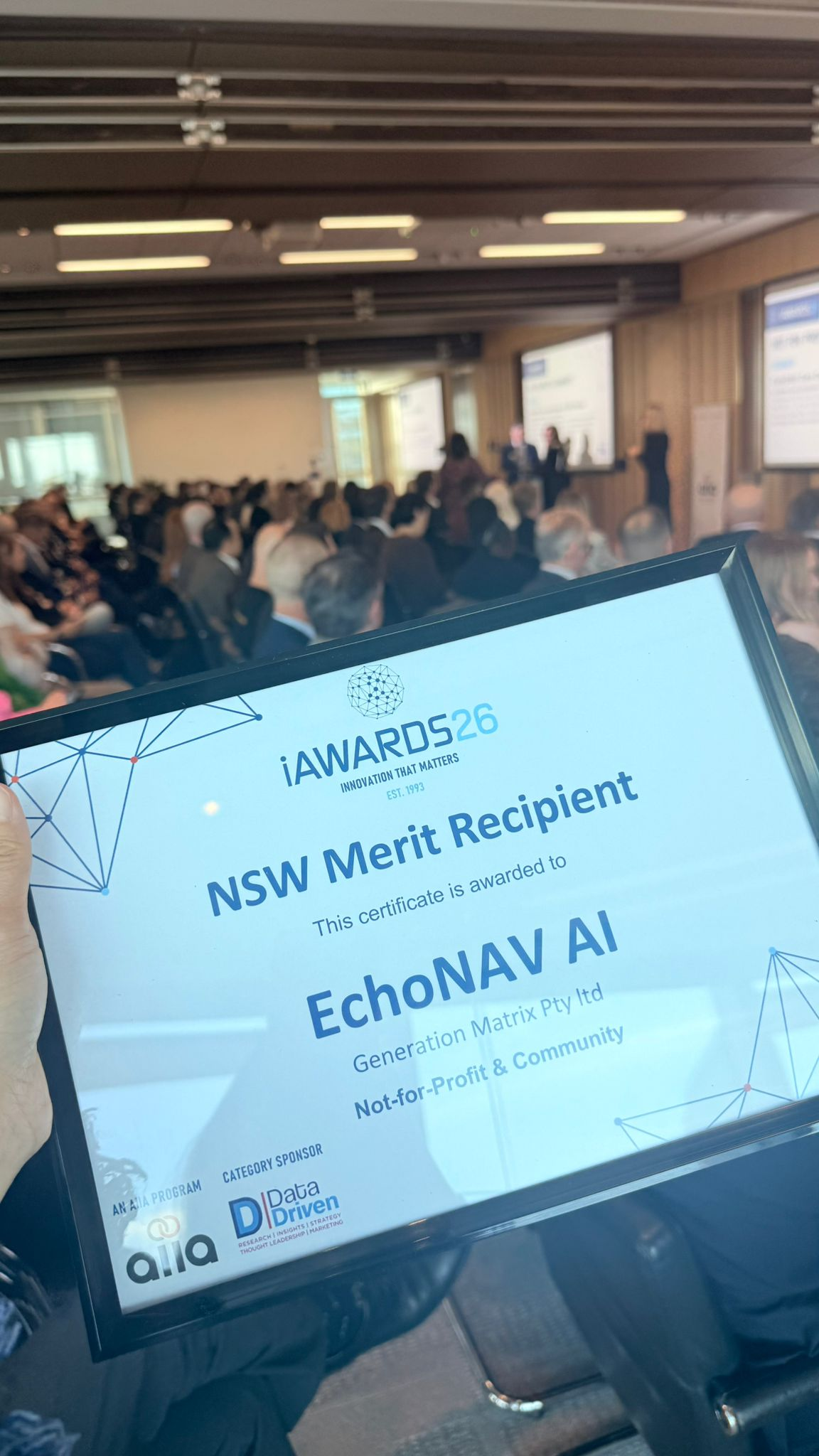
2026 iAwards — NSW Merit & National Finalist
EchoNav AI was recognised as a NSW Merit Recipient in the Not-for-Profit & Community category at the 2026 iAwards, going on to represent New South Wales as a National Finalist — validating our impact on digital accessibility and independence.
A Collaborative Ecosystem
Building the future of web navigation requires bringing together key stakeholders across the accessibility spectrum.
End Users & Advocacy Groups
Blind and low-vision individuals driving our feature roadmap through continuous feedback.
Open Source Community
Developers and AI researchers contributing to the core A-Eye engine and local LLM integrations.
Enterprise & Government Partners
Institutions requiring reliable, WCAG-compliant solutions to serve all citizens safely.
Seeking Endorsements
We are actively seeking pilot partnerships, grants, and official endorsements from leading organizations to validate and scale our technology:
Meet the Founders
EchoNav AI is led by a team dedicated to building a more accessible and independent web for everyone.
Michelle Tai
Co-founder & CEO
KH Tso
Co-founder & CTO
Configuration: Setting Up Your AI
You must configure at least one AI mode to enable the extension. Switch seamlessly between modes depending on your privacy and power requirements.
Local AI Setup
Ideal for privacy. All processing happens on your computer.
Option A: Ollama
- Install Ollama on your system.
- Set CORS: Run
setx OLLAMA_ORIGINS "chrome-extension://*" /M(Windows) - Run a model:
ollama run gemma3:4b(or 12b/27b based on VRAM) - In extension settings, ensure "Local Model Name" matches.
Option B: LM Studio
- Search and download
google/gemma-3in LM Studio. - Go to 'Local Server' tab and click 'Start Server'.
- Match "LM Studio Model Name" in extension settings.
Option C: Gemini Nano (Chrome Built-in)
- Requires Chrome Canary. Open
chrome://flags. - Enable "Prompt API for Gemini Nano" & "Enables optimization guide".
- Trigger download via console:
await LanguageModel.create().
Cloud AI Setup
Ideal for maximum power, speed, and performance.
Option A: Google AI Studio
- Visit Google AI Studio.
- Click Get API Key > Create API Key.
- Copy the key and paste it into the "Cloud API Key" field in the extension's Settings.
Option B: Mistral AI
- Visit Mistral AI Platform and log in.
- Navigate to 'API Keys' and create a new key.
- Paste it into the "Mistral API Key" field in settings.
Advanced: Google Cloud (Vertex AI)
For advanced users who want to manage their own GCP infrastructure, we support routing via custom API Gateways to Vertex AI. See repository docs for details.
Commands & Shortcuts
| Action | Shortcut | Voice Command Example |
|---|---|---|
| Open Side Panel | Alt+Shift+Q | - |
| Toggle AI Mode | Alt+Shift+1 | - |
| Toggle Voice Input | Alt+Shift+2 | - |
| Repeat Response | Alt+Shift+3 | - |
| Capture Visible Area | - | "Take a screenshot" |
| Capture Full Page | - | "Take a scrolling screenshot" |
| Analyze Text Content | - | "Analyze content" |
Privacy as a Priority
EchoNav AI (powered by the A-Eye core) is built from the ground up to respect your data. Web accessibility should never compromise your security.
No Data Collection
The extension does not collect or transmit any personal data, telemetry, or browsing history to our servers.
Secure Local Storage
Your settings and API keys are stored solely in your browser's local storage, completely isolated and inaccessible by external websites.
True Local AI Operation
When utilizing Local Mode (Ollama, LM Studio, or Gemini Nano), all data extraction and AI processing remain entirely on your physical machine. Zero cloud pings.
Partner With Us
Interested in partnering with EchoNav AI? Fill out the form below and our team will get back to you.